How to scan to email from a printer
The guide below provides instructions for use directly at the printer.
Printer setup
How to set up ‘Scan to email’ on a Konica printer
How to set up ‘Scan to email’ on a Konica printer
This guide shows you what to do on the printer – not on the computer.
a) Scan to email account (LDAP/DS address book look-up) - Save in the local address book if relevant
b) Scan to email account registered in the local address book
c) Scan to manually entered email account.
____________________
a) Scan to Email account
- Press the button ‘Fax/Scan’ below the display
- Press the display button ‘Søg/søgning’ (search/searching)
- Enter the recipient’s first name and last name and press the display button ‘Start Søgning’ (start searching)
- Select the recipient
- If you want to save the recipient’s name in the local address book, you must press the display button ‘Registrer’ (register).
- Select the recipient(s) again and press the display button ‘OK’.
- Press the display button ‘Registrer/Gem’ (register/save).
- Press the ‘Start’ button.
Note: If relevant, mark the email address you created as ‘One Touch / Foretrukne’ (one touch/favourite)... See the last section
b) Scan to email account registered in the local address book
- Press the button ‘Fax/Scan’ below the display
- Press the display button ‘Adressebog’ (Address Book)
- Press the display button with the first letter in the person’s first name
- Select recipient(s)
- Press the ‘Start’ button
c) Scan to manually entered email account
- Press the button ‘Fax/Scan’ below the display
- Press the display button ‘Direkte indt.’
- Press the display button ‘E-mail’
- Enter the email address (‘@’ can be found under ‘2’. Press the display button ‘Skift’ (switch))
- Press the ‘Start’ button
On the front page of the address book, select the email address you have created and mark it as ‘One Touch/ Foretrukne’ (one touch/favorite)....
This only applies to C220, C280, C360 and C650 (Note: for all xx4 models, see below)
- Press the button ‘Funk./Tæller’ to the right of the display.
- Then select ‘Display punkt 1’ four times!
- (1. One-touch..., 1. Create one touch..., 1. Address book..., 1. E-mail)
- Select the recipient and press the display button ‘Rediger’ (edit).
- Press the display button ‘pil ned’ (arrow down) and then the display button ‘Index’.
- Select the display button ‘Foretrukne’ (favourite) and press the display button ‘OK’.
- Press the button ‘Funk./Tæller’ to the right of the display in order to finish...
Applies to C224, C284, C364 and C654
- Press the button ‘Menu’ to the right of the display
- Press the display button ‘Funktion’ (function) to the right
- Then select ‘Display punkt 1’ four times!
- (1. One-touch..., 1. Create one touch..., 1. Address book..., 1. E-mail)
- Select the recipient and press the display button ‘Rediger’ (edit)
- Select the display button ‘Foretrukne’ (favourite) and press the display button ‘OK’
- Use ‘Luk/OK’ (close/OK) to close all menus
How to set up scan to email on Xerox WorkCentre 78xx
How to set up scan to email on Xerox WorkCentre 78xx
How to set up scan to email on Xerox WorkCentre 78xx
Contents:
- How to add email addresses locally on the Xerox printer (the Device Address Book)
- How to mark an email address as a favourite so it will be available on the front page
- How to find a specific person at AU in the Network Address Book
How to add email addresses locally on the Xerox printer (the Device Address Book)
Always start on the front page: Press the ‘home’ button on the left side of the printer.
1. Press ”E-mail”
2. Then press ‘Ny Modtager’ (new recipient)
3. Write your email address and select the address book

4. Select ‘Opret ny kontaktperson’ (add new contact person)
5. Press ‘OK’ (or click the address card or the email field in order to edit. You can also write your name in the field at the top)
The email contact has now been added.
How to mark an email address as a favourite so it will be available on the front page
1. Press ‘E-mail’ and select ‘Maskinens adressebog’ (the Device Address Book)
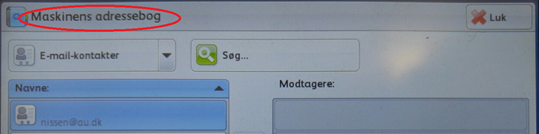
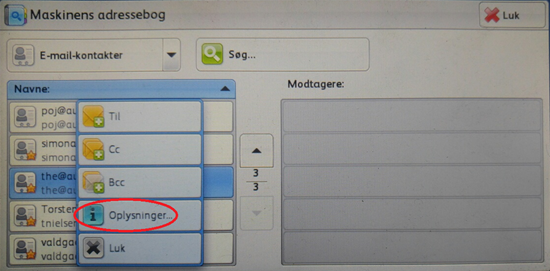
2. Select a contact person and press ‘Oplysninger’ (information)
3. Press the star to the right of the user information and then press ‘OK’
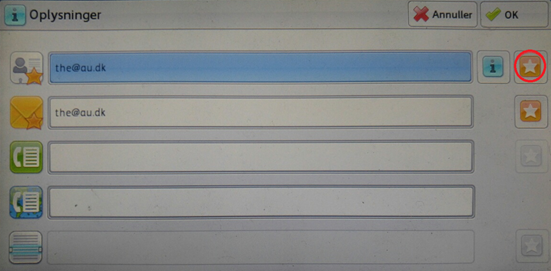
The email contact will then be marked as a favourite.
How to find a specific email address for a person at AU in the Network Address Book
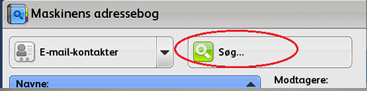
1. Press ‘Søg’ (search) in the local address book
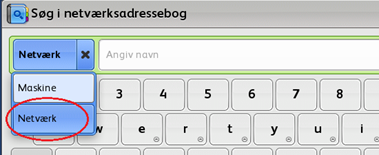
2. Switch to ‘Netværk’ (network) on the left.
3. Write first name and last name (e.g. ‘Thomas Ehler’) and then press ‘Søg’ (search).
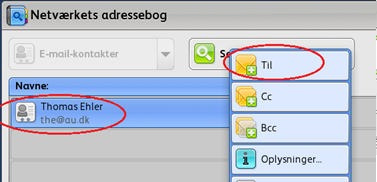
4. Select the recipient in question and select ‘Til’ (to) or ‘Cc’. The press ‘OK’.
When you are done, remember to remove your email from the start page: First press the ‘home’ button and then the ‘E-mail’ button. Then select your email/name and press ‘Fjern’ (remove).
How to set up scan to email on Xerox AltaLink C80xx
How to set up scan to email on Xerox AltaLink C80xx
Follow the procedure below to scan from the printer to your email:
1. In order to be able to scan documents to your, your colleague’s or another person’s email, you must first select ‘Email’.
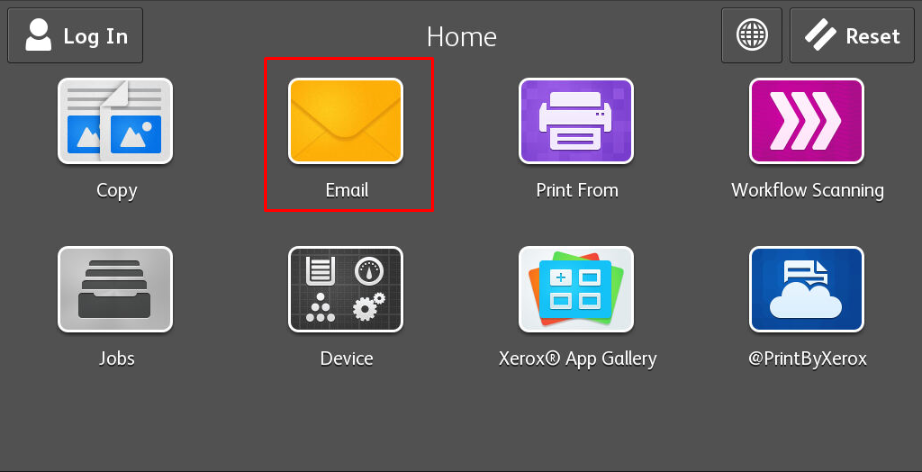
2. Press ‘Manual Entry’ to write the email you want to scan to
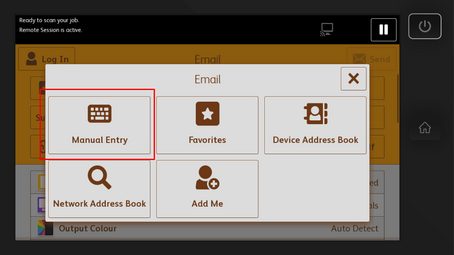
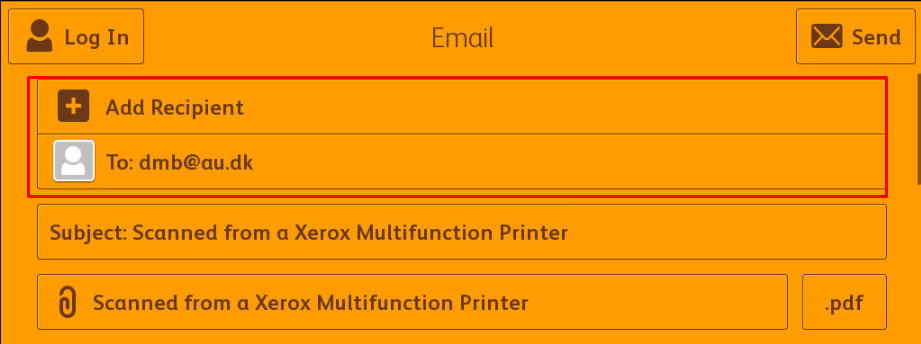
If it is not displayed automatically as illustrated below, then press ‘Add recipient’ and it will be displayed.
3. At the same time as you enter the email address you wish to scan to, you can also choose to add the email address to the address book to make it easily accessible the next time you want to scan. You can do this by pressing the little book icon to the right of the text box.

How to add the email address to the local address book
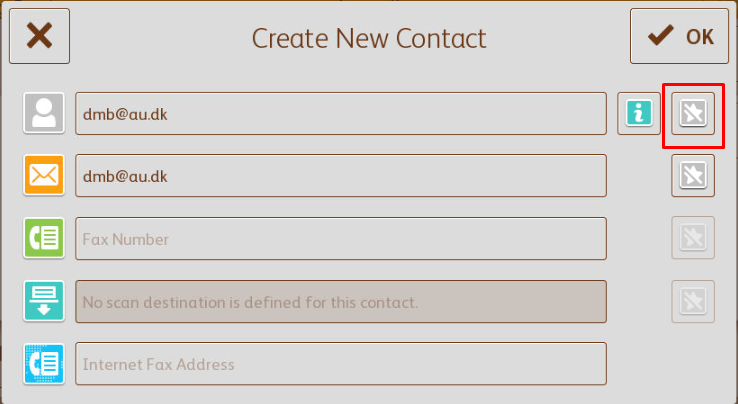
1. When you have pressed the little book icon, a new window will be displayed. The new window contains ‘Create New Contact’ or ‘Add to Existing Contact’. You should then press ‘Create New contact’.
A menu should then be displayed in which you can see the email address which you entered a few moments ago.
2. In order to add the email to the favourites address book to make it easily accessible, press the star marked on the screen image and press ‘OK’ in the top right-hand corner.
(You will now be able to find the email address under ‘Favorites’ instead of ‘Manual Entry’)
3. The email address you have entered/added to Favorites should now be displayed under ‘Add recipient’ as you can see here. Check that it is the correct email address(es) and press ‘Send’