How to work strategically with SDDs as a manager
The purpose of the SDDs is to ensure that the competency development of the employees are dealt with in a strategic and systematic way.
In a strategic way by ensuring a direction of development that matches the organisation’s needs and supports the overall strategy at Aarhus University.
In a systematic way by ensuring that employees and managers make agreements and follow up on agreements during the year.
This page contains tools to conduct a good development dialogue with your employees.
Phase 1 - How to prepare
Phase 1 - How to prepare
Create the framework:
- Define the unit’s goals, plans for the future, financial scope for competence development activities as well as the needs for competence development in the coming years. It may be a good idea to define this in collaboration with your own manager in connection with your own SDD.
- Please note that the local liaison committees may have specified special themes that should be discussed during the SDDs
- Create a schedule for the SDDs which includes:
- A date for a joint meeting in the unit
- Dates for the individual dialogues
- A date for a follow-up meeting in the unit
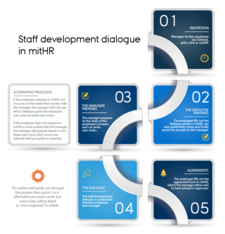
Choose a process for SDDs in your unit
In mitHR, the employees can send their preparation to you before the dialogue, so you can prepare with their answers in mind – and therefore have a more value-creating conversation. The system supports this process, but you can also choose an alternative process.
In deciding your process, you can click on the illustration of the SDD process i mitHR for more details and see tutorials on the dialogue guide and agreement form.
Inform your employees well in advance
- Conduct a GDD/TDD or a department meeting and provide information about
- When the SDDs will take place and chosen process
- Your expectations regarding the direction of the unit/department. Ask for comments and feedback and use, for example, the Impact Map tool
- Your expectations regarding the outcome of the dialogue and the employee’s preparation for the dialogue
- Invite the employees to SDDs via Outlook
Preparation for the individual dialogue:
- Review the progress since the last SDD based on the agreements and the follow-up
- Reflect on your and the employee’s development potential
- Prepare the dialogue
- directly in mitHR – either based on your employee's shared preparation or the questions in the dialogue guide (depending on your chosen process). Your preparation remains confidential.
- or based on the three topics for the dialogue
- Prepare appreciative and constructive feedback regarding performance and development for the employee
Phase 2 - Conducting SDDs, the dialogue
Phase 2 - Conducting SDDs, the dialogue
To conduct a quality SDD which has meaning and impact requires that the employee and the manager make an effort to conduct a dialogue that focuses on the future and on development.
A dialogue that leads to development requires that you listen to each other and try to understand the basis of what is being said by asking elaborating questions instead of arguing against the points that are being made.
Read: How to give constructive feedback.
Specific tips:
- It is recommended to allocate 1½ hours for the dialogue
- Keep track of time to ensure that you can cover all the main themes and special focus areas
- Remember that the employee should do most of the talking
- Allocate time to agree on the things that should be written in the agreement form afterwards - who will do what and when to follow-up
- Be specific when filling in the agreement form. This will make it easier to relate to the specific items in the form and follow up on them.
Phase 3 - Remember follow-up
Phase 3 - Remember follow-up
Approval and information
- When the agreement form has been completed by the employee, you must approve it
- If relevant, coordinate the competence development wishes locally before committing to specific wishes from the employees
- Hold a follow-up meeting in which you inform about important themes and special focus areas which have been uncovered during the dialogues, and how you plan to follow up. For reasons of confidentiality, it is important that no reference is made to the specific contents of individual dialogues.
Follow up on an ongoing basis
As a manager, you also play an important role when it comes to following up on whether the individual development activities are on the right track and whether the employee is benefiting as intended.
If some of the activities do not progress as expected, you should discuss why and whether new initiatives should be taken. Experience shows that individual follow-up is key in order for the manager and the employee to feel that the SDD has an effect.
Dialogue guides
Dialogue guides
The dialogue guide in mitHR is a questionnaire with a mixture of multiple choice and open questions. All questions are voluntary and you can answer in the way you see fit. You can ask supplementary questions, leave out sub-questions and ask the questions in another order than specified in the guide.
The idea is to create a fluent dialogue with both the manager and the employee asking questions which come to them naturally. However, as a minimum, the dialogue should cover the three main themes in the dialogue guide.
The three main topics of the dialogue are:
1. What has happened since the last SDD? – A good starting point for talking about the future
2. Well-being and job satisfaction
3. Future tasks and competence development
You find the dialogue guides in mitHR and can see them here:
- PhD student
- Junior VIP (e.g. assistant professor, researcher, postdoc, research assistant)
- Senior VIP (e.g. professor, associate professor, senior researcher)
- Senior VIP with managerial responsibility (e.g. professor, associate professor, senior researcher)
- Technical or administrative staff (TAP)
- Technical or administrative staff (TAP) with managerial responsibility
- Group or Team development dialogues
How to give each other constructive feedback
How to give each other constructive feedback
As part of the SDD process, the intention is that the manager and the employee give each other feedback on, for example, work performance and collaboration during the past year.
To ensure that the feedback can be used constructively, it is a good idea to use this simple feedback model:
1. Describe facts
Start with a specific example, for example a situation or a quote which calls for feedback.
Repeat facts without trying to interpret them.
2. Describe how you experienced the situation
Your experience is about you, and sentences such as ‘I feel/become/am...’ - e.g. impressed, confused, insecure, sceptical, happy, relieved, inspired, unhappy, proud or angry - should be used.
Judgemental expressions are not suitable for giving feedback, for example ‘You are so …’, ‘You always get …’
3. Say what it is you want
Say what you want the other person to do.
Say what you wish for and what you want in future rather than what you don’t want.

Annual SDD Schedule
Annual SDD Schedule
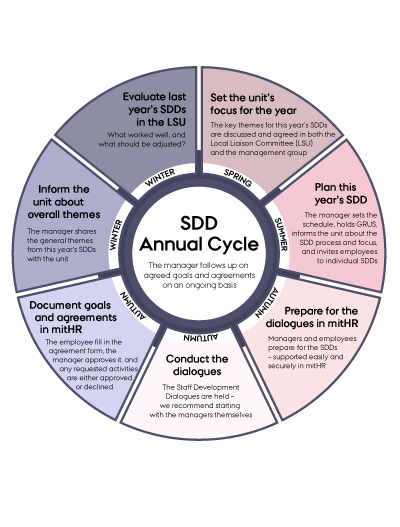
The SDD should not be seen as a stand-alone dialogue, but as an ongoing process. You will reach the best results if you follow up on an ongoing basis and make notes about the employee’s tasks and challenges throughout the year.
- Spring: set the units focus for the year
- Summer: plan this year’s SDDs in the unit and inform your employees about what you expect of them and send out invitations
- Autumn: conduct SDDs and approve agreement forms
- Winter: inform the unit about general themes and evaluate this years SDD's
Remember to follow up on agreed goals and agreements on an ongoing basis.
